Firmware
Firmware, drivers, software, documentation and FAQ:
KOMDRUCK IDP-2100 Series

Downloads IDP-2103 / IDP-2103 S
Firmware
|
VERSION |
DOWNLOAD |
BESCHREIBUNG |
|
IDP-2103 Build 2528A Rev. 165 |
This firmware makes the IDP-2103 compatible with Nanoblack ink (previously only with the 2104 model).
With the latest toolbox (from build 197), the IDP-2103 can be set to either nanoblack or pigment ink under the expert settings. Together with the latest driver, the drying behaviour has been improved and optimized for BDR printing. ATTENTION: Make sure you always install the latest Toolbox in order to be able to use the full range of functions of the IDP-2103 firmware. You can find the current toolbox here in the download portal under the “Software” button. |
Drivers
Software
Documentation
Important system requirements
Before installing the KOMDRUCK software and drivers, please ensure that the software “Microsoft Visual C++ 2010 Service Pack 1 Redistributable Package MFC” is installed on your computer.
Note: IDP2103 Toolbox-Setup installs Visual C++ 2010 x86 together with the Toolbox.
Direct download:
Visual C++ 2010 x86 for toolbox, firmware updates and driver installer for 32-bit systems.
Direct download:
Visual C++ 2010 x64 for driver installer on 64-bit systems.
Download from Microsoft site:
DO YOU HAVE A TECHNICAL PROBLEM?
Simply send us your request by e-mail, give us a call or use the service form.
Phone: 06253/20 256-118
E-mail: service@komdruck.de
FAQ Solutions to the most frequently asked questions
After a Windows update, the printer is not recognized or shows “Offline” starting with version 25H2.
After a recent Windows update, your Komdruck printer may not work properly. In that case, Windows automatically uses a generic Microsoft printer driver that is not compatible with our printer.
Common Problems:
The printer does not appear in the printer list.
The printer is always shown as “Offline.”
The Komdruck installation software gets stuck on “Next.”
Here’s how to solve the problem:
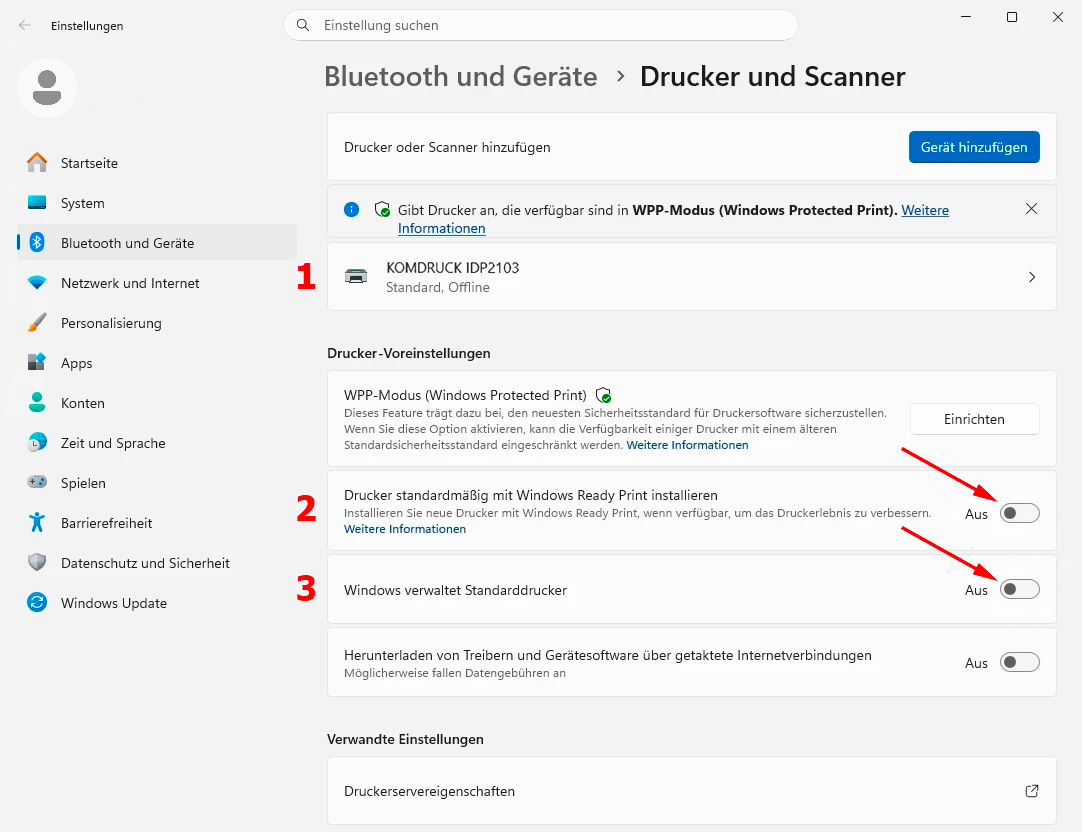
- Open Settings > Bluetooth & Devices > Printers & Scanners.
- Find your Komdruck printer in the list. (1).
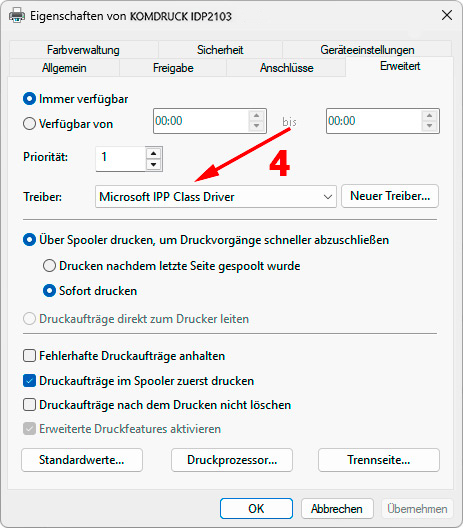
- Click on the printer, and then select “Printer Properties”.
- Open the “Advanced” tab there. (4).
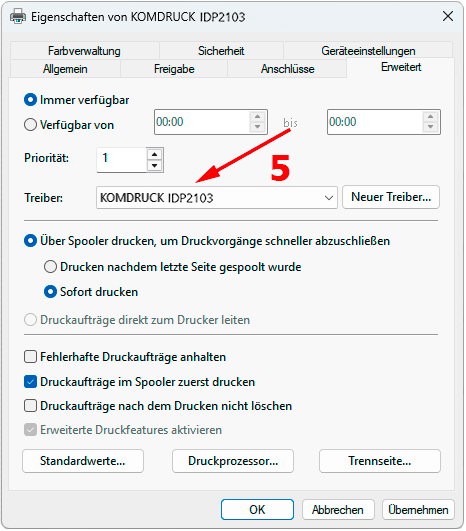
- If it says “Microsoft IPP Class Driver,” select the Komdruck printer driver instead. (5).
- Click Apply, then click OK. (5).
- Restart the computer and the printer.
- If the printer does not appear in the list at all, unplug the USB cable from the printer.
- Install the Komdruck printer driver.
- Under “Printers & Scanners,” disable the “Windows Protected Print Mode” option. (2/3).
- Reconnect the USB cable.
- Next, check again to make sure the correct ComPress driver is selected. (1).
Note: Changes to security settings may be restricted depending on your company or PC settings. In that case, please contact your IT department.