
Firmware
Firmware, drivers, software, documentation and FAQ:
KOMDRUCK ILP-4200 Series
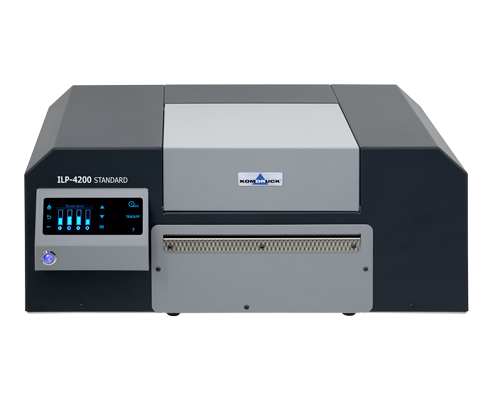
Downloads ILP-4200 Standard / Cutter / Peeler
Firmware
| VERSION | DOWNLOAD | BESCHREIBUNG |
| ILP-4200 Classic | KOMDRUCK_ILP4200_Build_2627B_Rev_212_Classic_FDU.zip | Download the latest firmware for your Komdruck ILP-4200 printer here to optimize your device’s performance and compatibility. The update includes important improvements and bug fixes. Important: This firmware version works properly only when used with the ILP-HUB 285 or a later model. Only when updating from a firmware version prior to Rev. 212: After installing the firmware in the ILP-HUB, open the “Print Orientation” tab and select the “Bottom Margin” setting once. Instructions:
Note: Please close all other applications and make sure the printer is connected to your computer via USB before starting the update. |
| ILP-4200 Industry | KOMDRUCK_ILP4200_Build_2631A_Rev_213_Industry_FDU.zip | Important: This firmware version works properly only when used with the ILP-HUB 285 or a later model. Only when updating from a firmware version prior to Rev. 212: After installing the firmware in the ILP-HUB, open the “Print Orientation” tab and select the “Bottom Margin” setting once. Instructions:
Note: Please close all other applications and make sure the printer is connected to your computer via USB before starting the update. |
Drivers
Software
Documentation
Video Tutorials ILP-4200
KOMDRUCK ILP-4200
PRINTER INSTALLATION
00:20 Scope of delivery
00:34 Installing the printer
00:54 Loading the ink cartridges
01:16 Driver installation (USB)
01:46 Driver installation (network)
KOMDRUCK ILP-4200
SETUP INSTRUCTIONS
00:20 Connecting the ILP-HUB to the printer
00:39 Setting up the printer via ILP-HUB
00:57 Loading and setting the labels
01:52 Create print template with NiceLabel
KOMDRUCK ILP-4200
SETUP AND MAINTENANCE
00:20 Display and printer components
01:00 Sensor setting
02:06 Changing the ink cartridges
02:31 Replacing the print head
02:57 Replacing the ink pad
04:15 Cleaning / paper jam
KOMDRUCK ILP-4200
ILP-HUB Functions

00:21 Status display
01:12 Print
02:40 Margins
03:06 Setting
04:35 Connection
05:13 Service
06:00 Info
The video is embedded by YouTube and only loaded and played when you click on the play button. From then on, Google’s privacy policy applies.
Important system requirements
Before installing the KOMDRUCK software and drivers, please ensure that the software “Microsoft Visual C++ 2010 Service Pack 1 Redistributable Package MFC” is installed on your computer.
Note: IDP2103 Toolbox-Setup installs Visual C++ 2010 x86 together with the Toolbox
Direct download:
Visual C++ 2010 x86 for toolbox, firmware updates and driver installer for 32-bit systems.
Direct download:
Visual C++ 2010 x64 for driver installer on 64-bit systems.
Download from Microsoft site:
DO YOU HAVE A TECHNICAL PROBLEM?
Simply send us your request by e-mail, give us a call or use the service form.
Phone: 06253/20 256-118
E-mail: service@komdruck.de
FAQ Solutions to the most frequently asked questions
Protect the ILP-4200 print head from drying out
How to protect the ILP-4200 print head from drying out using a damp cloth or sponge inside an airtight container.
Basic Principle
• The goal is to create a slightly damp environment; avoid using a water bath or allowing water droplets to form on the print head.
• Under no circumstances should the contacts or electronics get wet, as this can cause short circuits and corrosion.
Preparation
• Use distilled water, not tap water (lime, salts, bacteria).
• Use a lint-free cloth or paper towel without loose fibers.
• The container must be clean and as airtight as possible.
Preparing the print head
• Remove the print head and gently wipe the nozzle surface only if visible ink residue is present (do not scrub).
• Cover electrical contacts and connectors with tape, e.g., Kapton tape or painter’s tape, to prevent direct contact with moisture.
How to place the print head in the container
• Lightly dampen the cloth with distilled water: it should be damp, but not dripping wet.
• Place the cloth in the container, e.g., along the edge or on the bottom, but position it so that the print head does not sit directly in the wet spot.
• Place the print head in the container with the nozzles facing down or to the side; The nozzles should hover just slightly above the damp surface, not directly in a puddle.
• Seal the can airtight.
Storage conditions and duration
• Store at 15–30 °C if possible; do not store in direct sunlight or near a heater.
• This is fine for breaks ranging from a few days to a few weeks.

